Breeze Release 2
Claim adjustments
Adjustments let you record Gift Aid corrections that will be netted on a future claim. An adjustment is not a new donation: the Amount field is the Gift Aid previously over-claimed (or similar correction), not the donation total.
You create adjustments after donations exist so there is claim capacity to absorb them. GiftAider claims each adjustment in full when the available claim amount is large enough; otherwise the adjustment is held for a later claim.
Where to open
Donations → Adjustments
(Or from a claim, View Adjustments / Show adjustments when that action is shown.)
Create an adjustment (after donations)
- Import or enter donations first (so Gift Aid ready to claim is greater than zero). Example from the demo: sample CSV import → Job #6 Donation Import and Job #7 Import Merge → £85 donations / Gift Aid ready £21.25.
- Open Donations → Adjustments.
- Choose + Add.
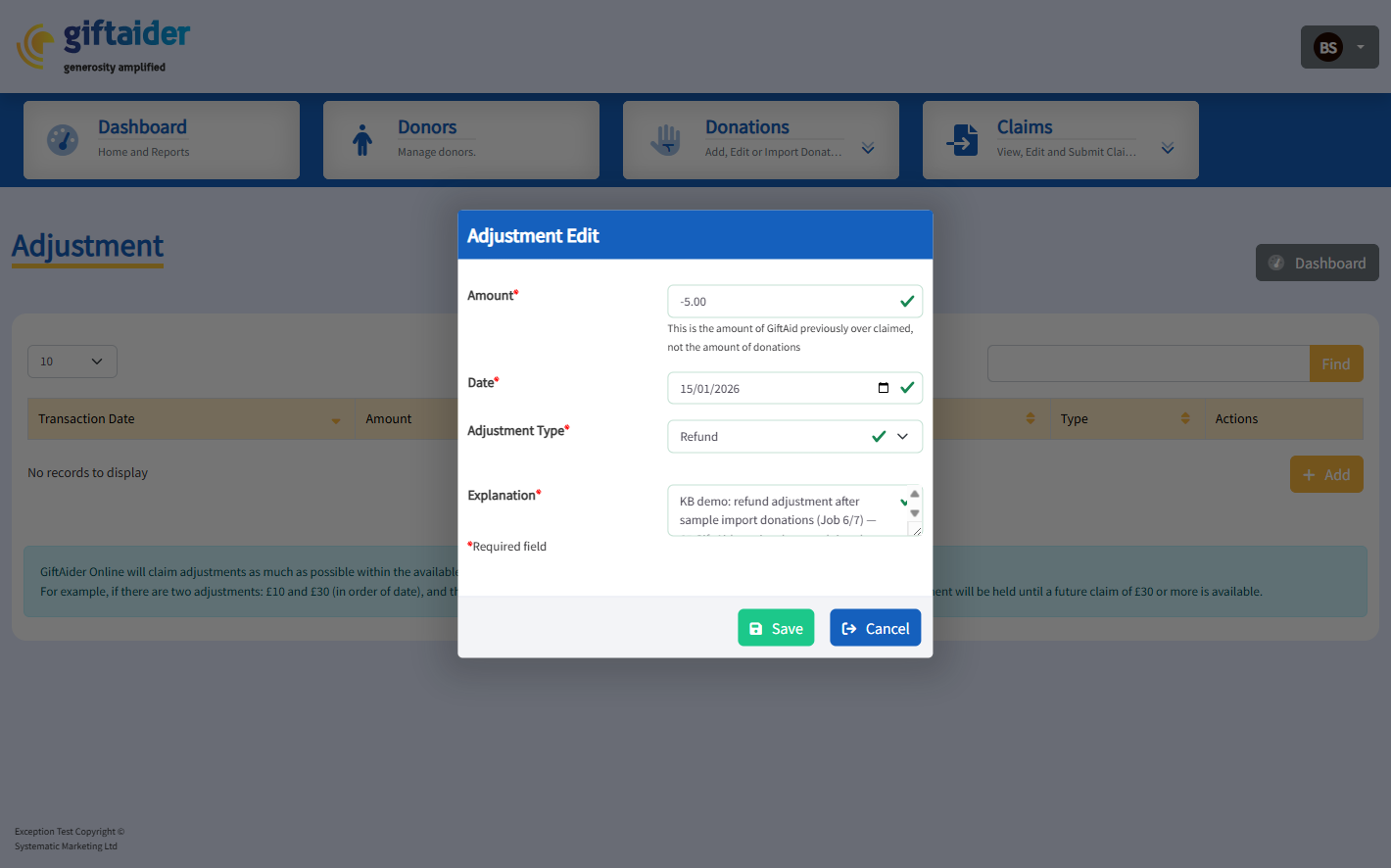
- On Adjustment Edit, complete:
Amount — Gift Aid previously over-claimed (Refund may show as a negative value, e.g. £-5.00)
Date — transaction date (cannot be blank, future, or before the earliest claimable date)
Adjustment Type — Refund, Not Gift-Aidable, or Other
Explanation — required comment (why the adjustment exists)
- Save. The list shows the row with Claim Status Unclaimed, plus Edit / Cancel while it remains unclaimed.
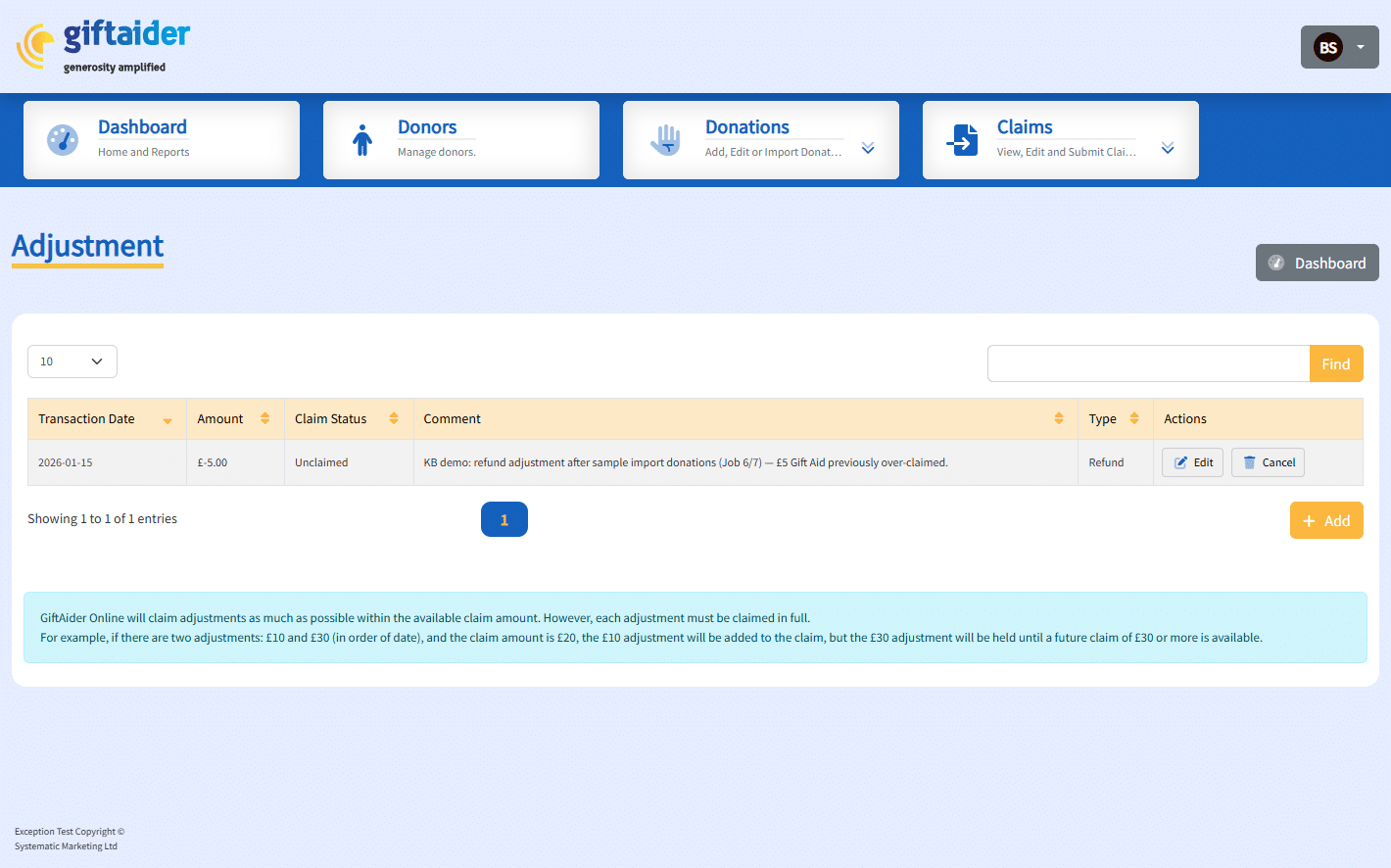
Demo example captured for this article
After the KB sample import (Jobs 6 and 7), a Refund adjustment was saved:
- Transaction Date: 2026-01-15
- Amount: £-5.00
- Claim Status: Unclaimed
- Type: Refund
- Comment: notes that it follows the sample import donations
How adjustments are claimed
GiftAider Online will claim adjustments as much as possible within the available claim amount. However, each adjustment must be claimed in full.
Example from the screen: if there are two adjustments £10 and £30 (by date) and the claim amount is £20, the £10 adjustment is added and the £30 adjustment is held until a future claim of £30 or more is available.
What you can do later
- Edit or Cancel an Unclaimed (or Invalid) adjustment from the Actions column
- Review Type, Amount, Claim Status, and Comment before Sign and Submit
- After adjustments change claim figures, re-check the claim; if you had already signed, GiftAider may revoke the declaration and ask you to sign again
Tips
- Create adjustments after the related donations are imported or entered.
- Use a clear Explanation — it appears on the adjustments list and helps audit.
- Check Notifications & Jobs on the Dashboard for the import/merge jobs that produced the donations behind your claim capacity.
Last updated: 30 September 2026 Screenshots: list (saved Refund), Adjustment Edit (filled), after sample import.
Last updated on: September 30, 2026