
GiftAider processes imports, merges and claims as background jobs. This lets you continue using other parts of the system while work is completed.
Common job states
- Queued: GiftAider has accepted the request and is waiting to start it. Wait and refresh after a short interval; do not place the same job again.
- Processing: Job Manager is working on it. You can navigate elsewhere; avoid repeating the action.
- Complete: The job reached its expected endpoint. Open the details and check the resulting records or claim.
- Controlled error or failed: The job stopped and should provide an explanation or error file. Read the details before correcting data or retrying.
- Paused or held: Processing has been deliberately paused or the tenant is not currently being processed. Contact your administrator or support if you did not expect this.
The exact wording may vary by job type. The job detail is more useful than the colour alone.
Check a job
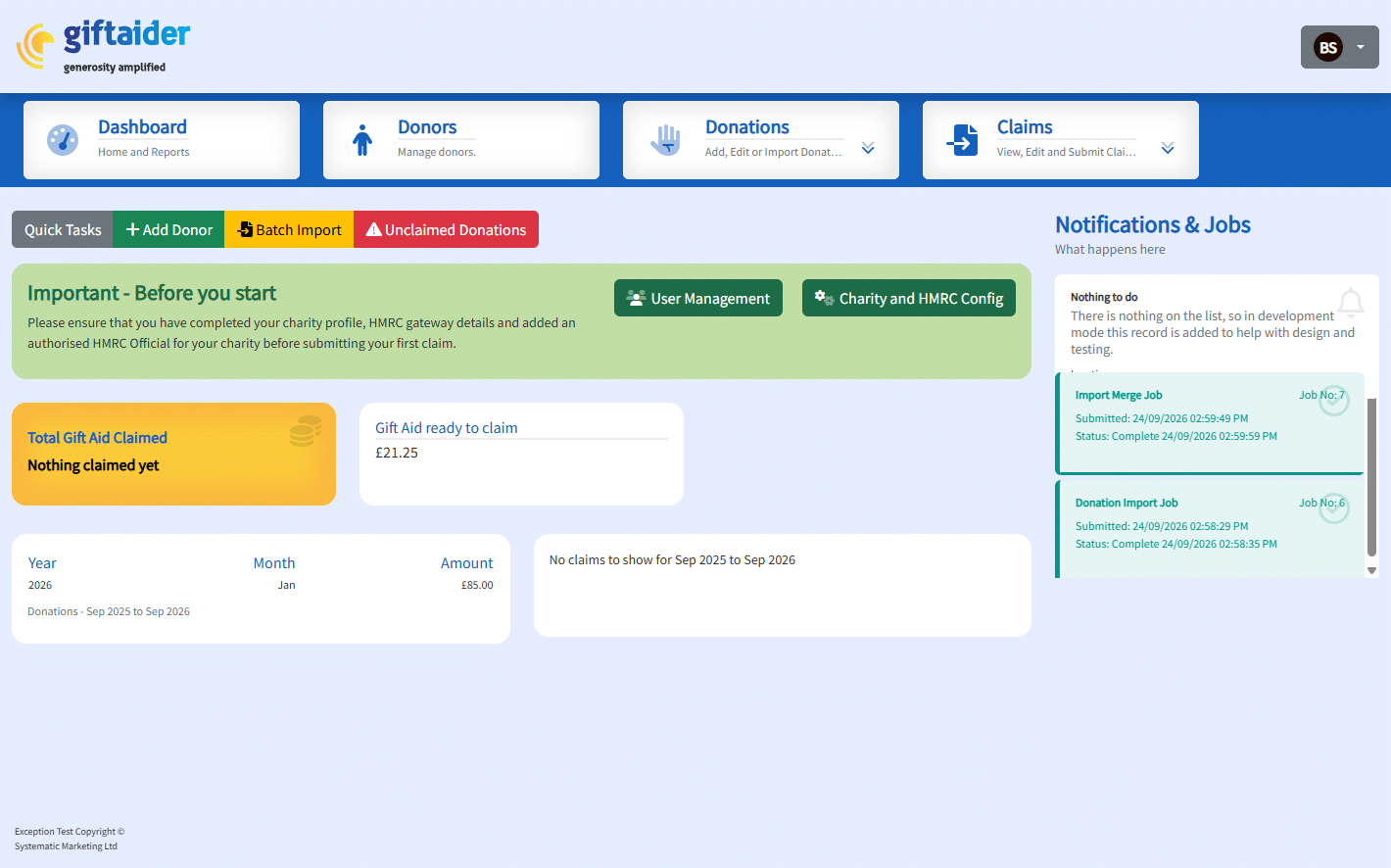
- Open the Job Manager area from the dashboard.
- Find the job by its ID, time, source file or claim reference.
- Open the job details.
- Check the job type, tenant, start time and current state.
- Review statistics and messages.
- If an error download is available, save and open it before changing the source data.
- Refresh the list once to confirm the current state.
Avoid duplicate work
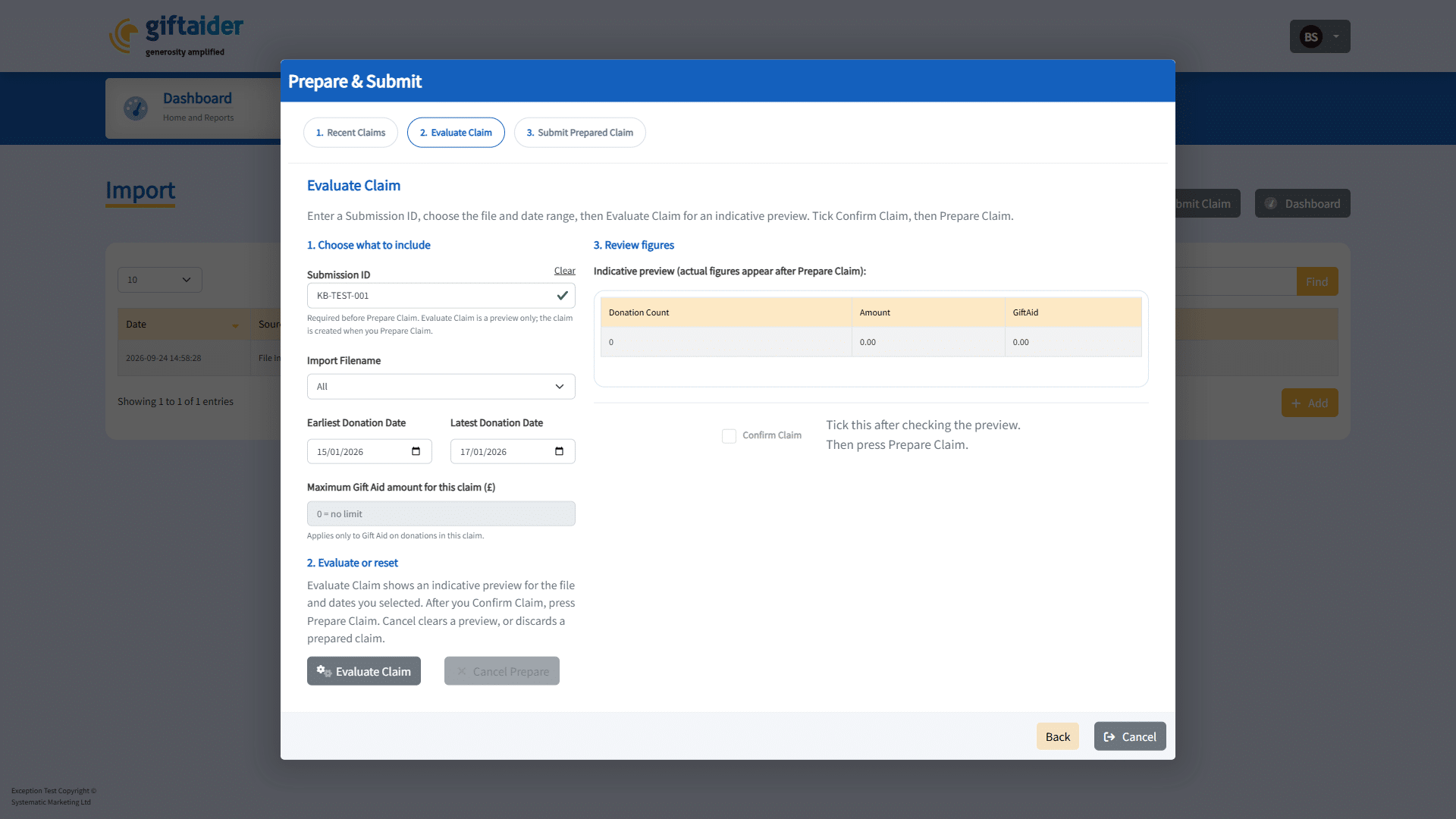
- Select an import, merge, Prepare Claim or Sign and Submit action once.
- Do not place another job simply because you navigated away.
- Search for the original job and check its result first.
- Before re-uploading a file, confirm whether any valid rows were already merged.
Expected result
The dashboard, job list and job details show a consistent terminal state. A completed job creates the intended records once. A controlled error remains readable and does not create unexplained duplicates.
When to contact support
Contact support if a queued or processing job does not change for an unusually long time, the list and detail disagree, a raw technical error appears, a completed job has no expected result, or one action seems to have created duplicate jobs.
Provide the job ID, job type, time and a description of what you expected. Never send passwords or HMRC credentials.
Related guidance
- Importing, merging and preparing Gift Aid claims
- Resolve import errors and download error details
- Prepare, sign and submit a Gift Aid claim
Last updated on: October 5, 2026