
GiftAider separates claim preparation from final authorisation. This gives your charity a chance to check the figures before the HMRC-authorised official signs and submits the prepared claim.
Before you start
- Your charity and HMRC details are complete.
- An HMRC-authorised official is configured with their own login.
- Your user is permitted to prepare claims.
- Eligible donations have been entered or imported and validated.
- Your charity holds the required donation and declaration evidence. Amplify can manage declarations; Breeze assumes claim-ready data and valid evidence are already held by the charity or source system.
HMRC requires charities to retain sufficient records to support a claim. See https://www.gov.uk/guidance/gift-aid-declarations-claiming-tax-back-on-donations.
Preview the claim
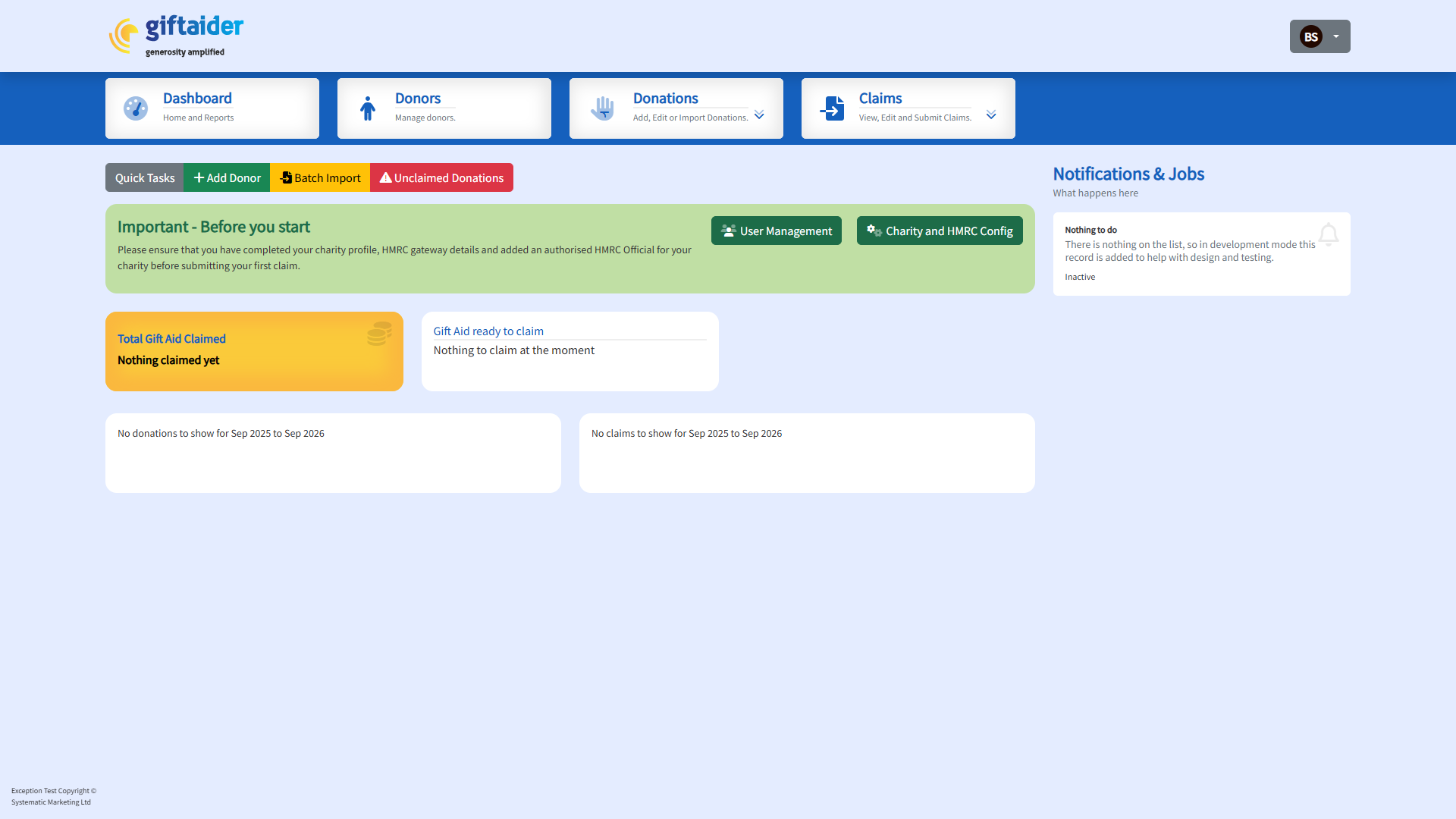
- Open Claims and start the claim workflow.
- Choose the relevant claim type, date range and import selection.
- Review the donation count, donation value and estimated Gift Aid.
- Review any adjustments or other claim sections shown.
- If the figures are not expected, stop and correct the underlying records before preparing the claim.
Prepare the claim
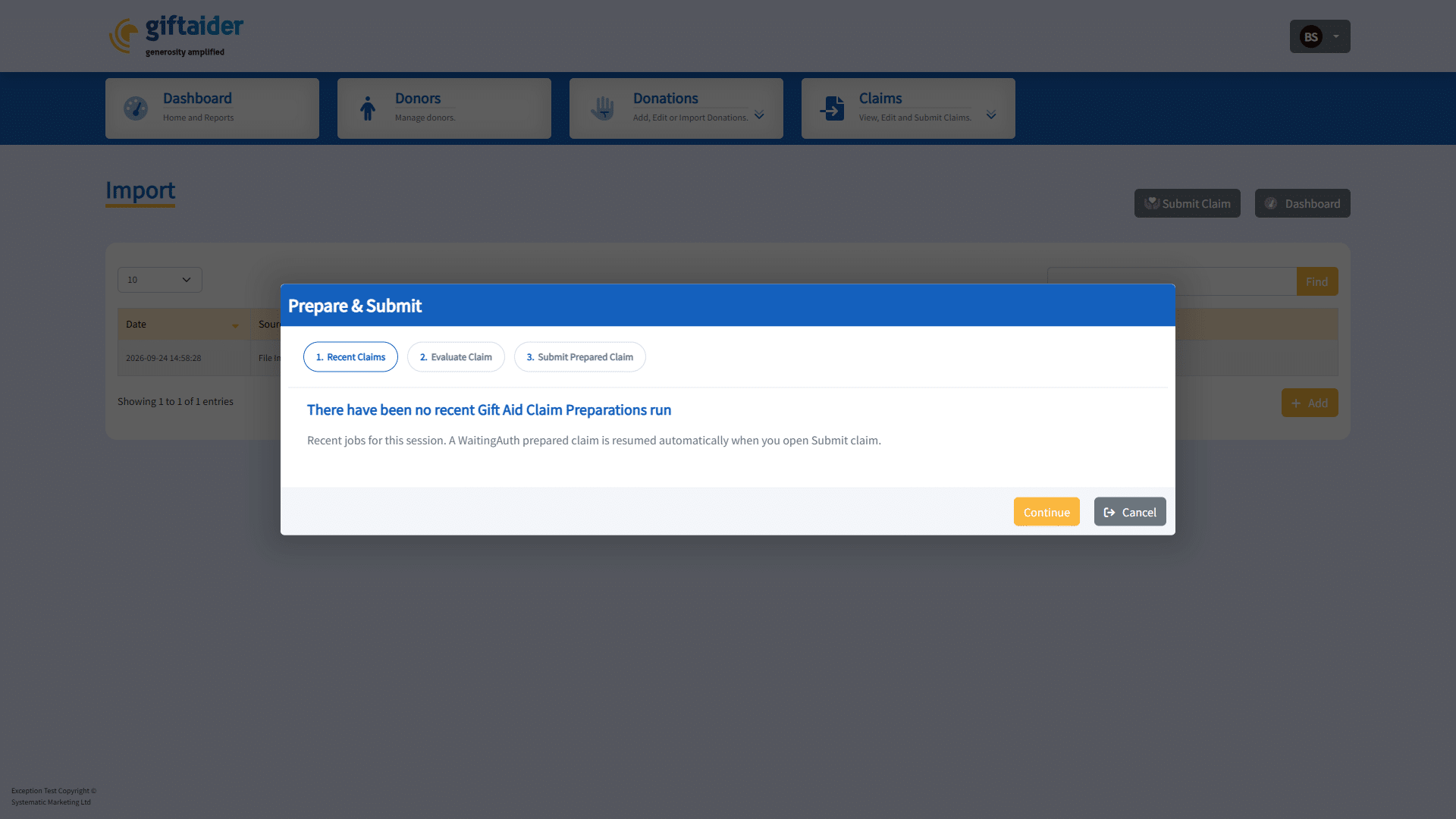
- Continue to the preparation step.
- Select the authorised official who will sign the claim.
- Review the final preparation summary.
- Select Prepare Claim once.
Preparation runs as a background job. You can navigate to another GiftAider page while it runs. Do not repeatedly select the preparation button.
When preparation finishes, the claim moves to Waiting Auth. GiftAider may also send the selected official a Claim Ready email.
Sign and submit
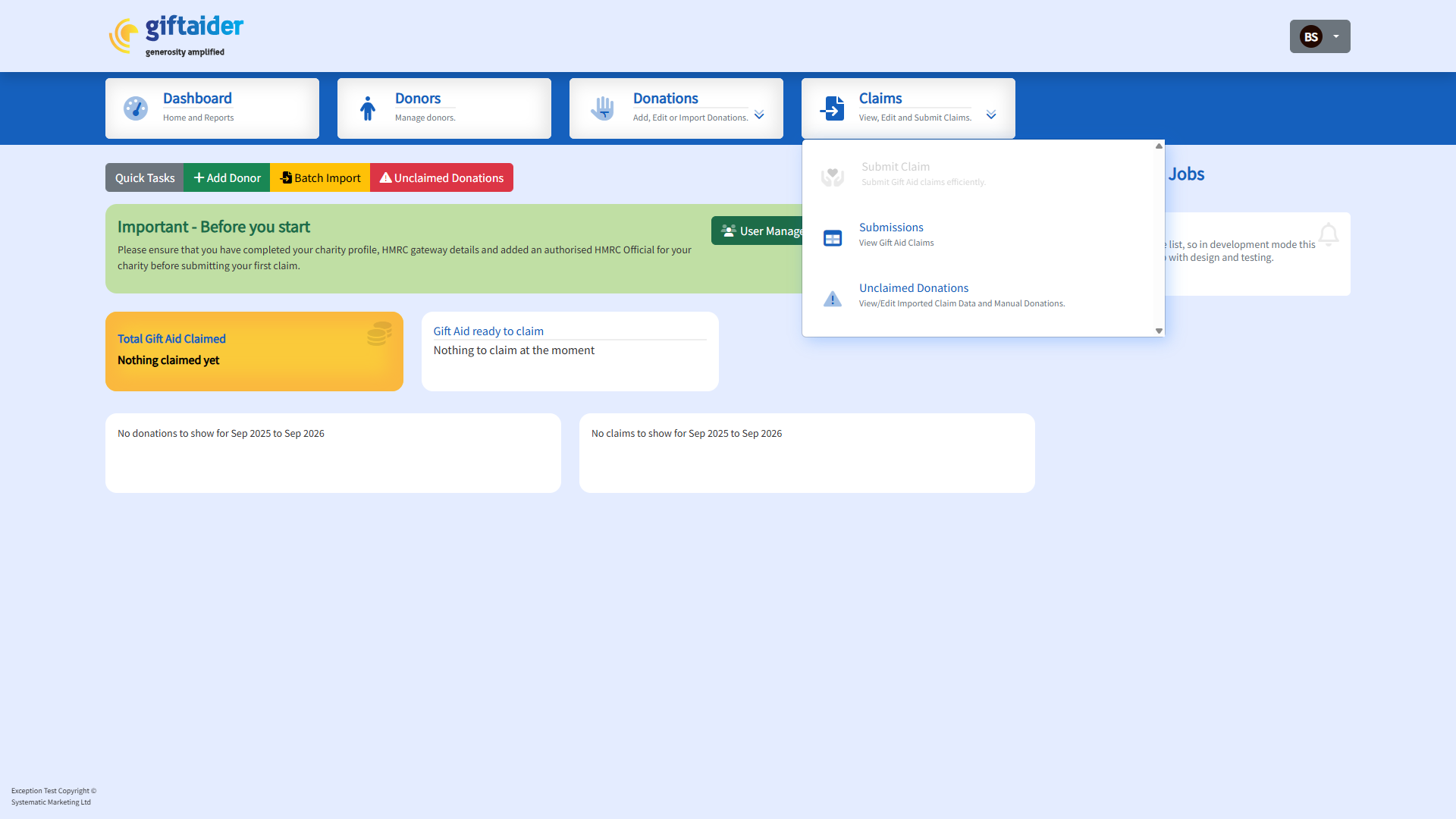
- Open Claims, then the submissions or past-claims area used by your package.
- Find the claim with status Waiting Auth.
- Select Continue to open the prepared claim.
- Check the claim reference and prepared figures.
- Read the declaration.
- Tick the consent box only when the authorised official agrees to the declaration.
- Enter the authorised official’s GiftAider password when prompted.
- Select Sign and Submit once.
The password confirms the selected official’s identity in GiftAider. A blank, incorrect or different user’s password should not create a submission job.
Expected result
Exactly one submission job is created. The job moves through GiftAider’s background processing and the claim status updates when a response is received. A submitted reference or technical acknowledgement is not a guarantee of payment.
If something does not look right
- Do not submit if the prepared figures differ from the checked preview.
- If the claim needs correcting while it is Waiting Auth, cancel it and prepare it again.
- If the consent box is not selected, Sign and Submit should remain unavailable.
- If the job fails, open the job details and read the returned message before retrying.
Related guidance
- Continue or cancel a claim that is Waiting Auth
- Understand the Claim Ready email
- Understand GiftAider jobs and statuses
- Reconcile a submitted Gift Aid claim
Last updated on: October 5, 2026